Closing unused apps on an Android phone
This short guide is a reference tool to help refresh your knowledge or practise what you have learned in the Closing unused apps on an Android phone online video course. You’ll learn:
- how to find open apps on your phone
- how to close one app at a time, or all apps at once.
About apps
When you switch between apps, they can remain open in the background. Closing apps you’re not using can improve your phone’s performance and reduce battery drain.
You can close apps any time when your phone is unlocked, whether you are using an app or web page, checking your messages or making a call.
Finding and closing apps
There are two ways to check which apps are open on your phone, depending on your Android model.
- Virtual button. Tap the Recents app icon at the bottom of the screen. The icon looks like three vertical lines or a square.
- Navigation bar. Put your finger on the bar, then swipe up slowly from the bottom, without removing your finger from the surface of the screen, and pause in the middle.
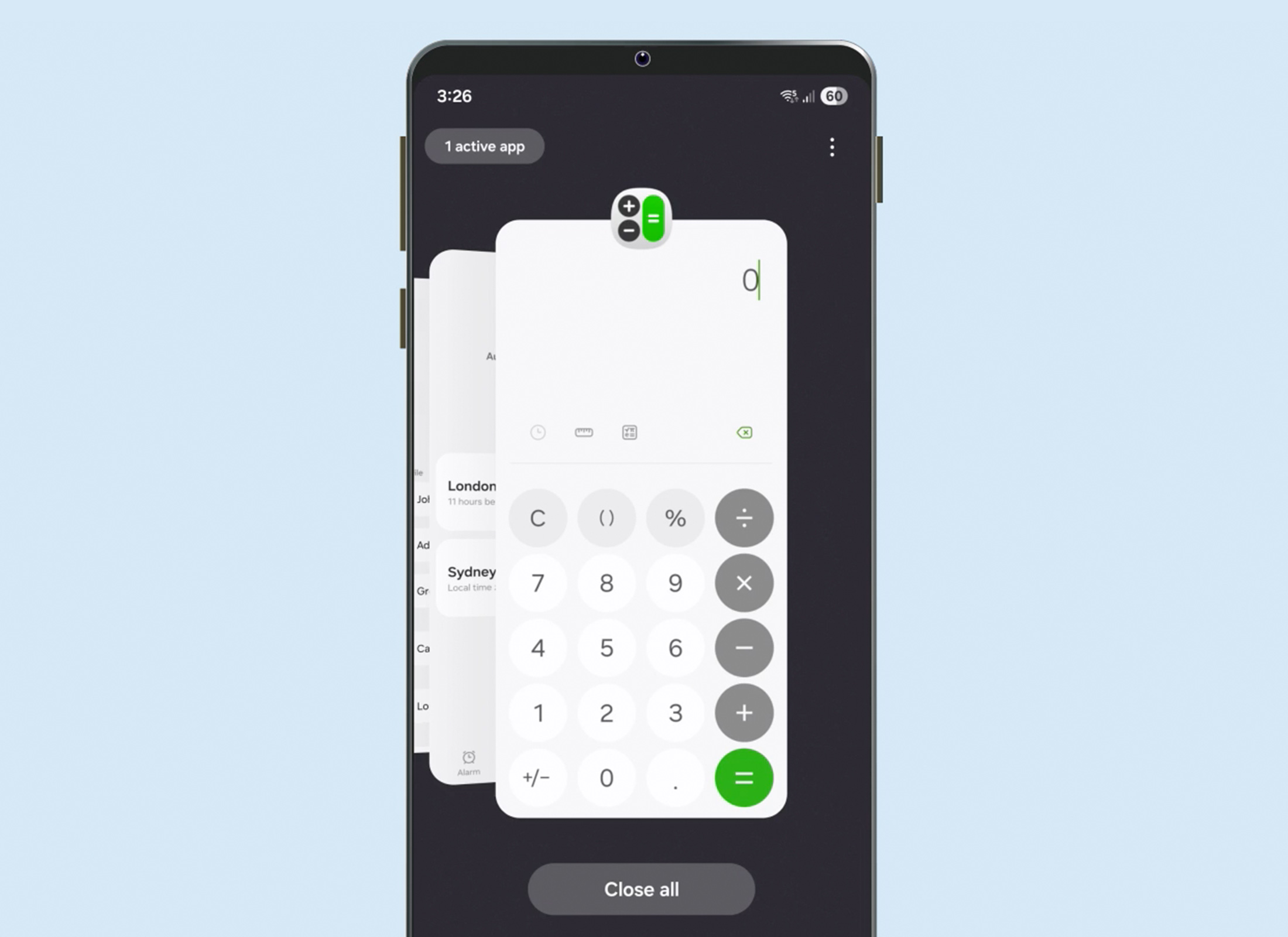
Once you’ve tapped or swiped on your phone, a carousel of app panels appears. Each panel represents an open app on your phone.
- You can swipe left and right through the carousel to find an app you want to close.
- Swipe the panel upwards until it disappears off the screen to close it.
- To close all open apps, tap Close all at the bottom of the screen.