Using the Side key on an Android phone
This short guide is a reference tool to help refresh your knowledge or practise what you have learned in the Using the Side key on an Android phone online video course. You’ll learn:
- where to find the Side key on your phone
- how to use it to turn your device on or off, and wake the screen
- how to take a screenshot, open the camera, and access the digital assistant.
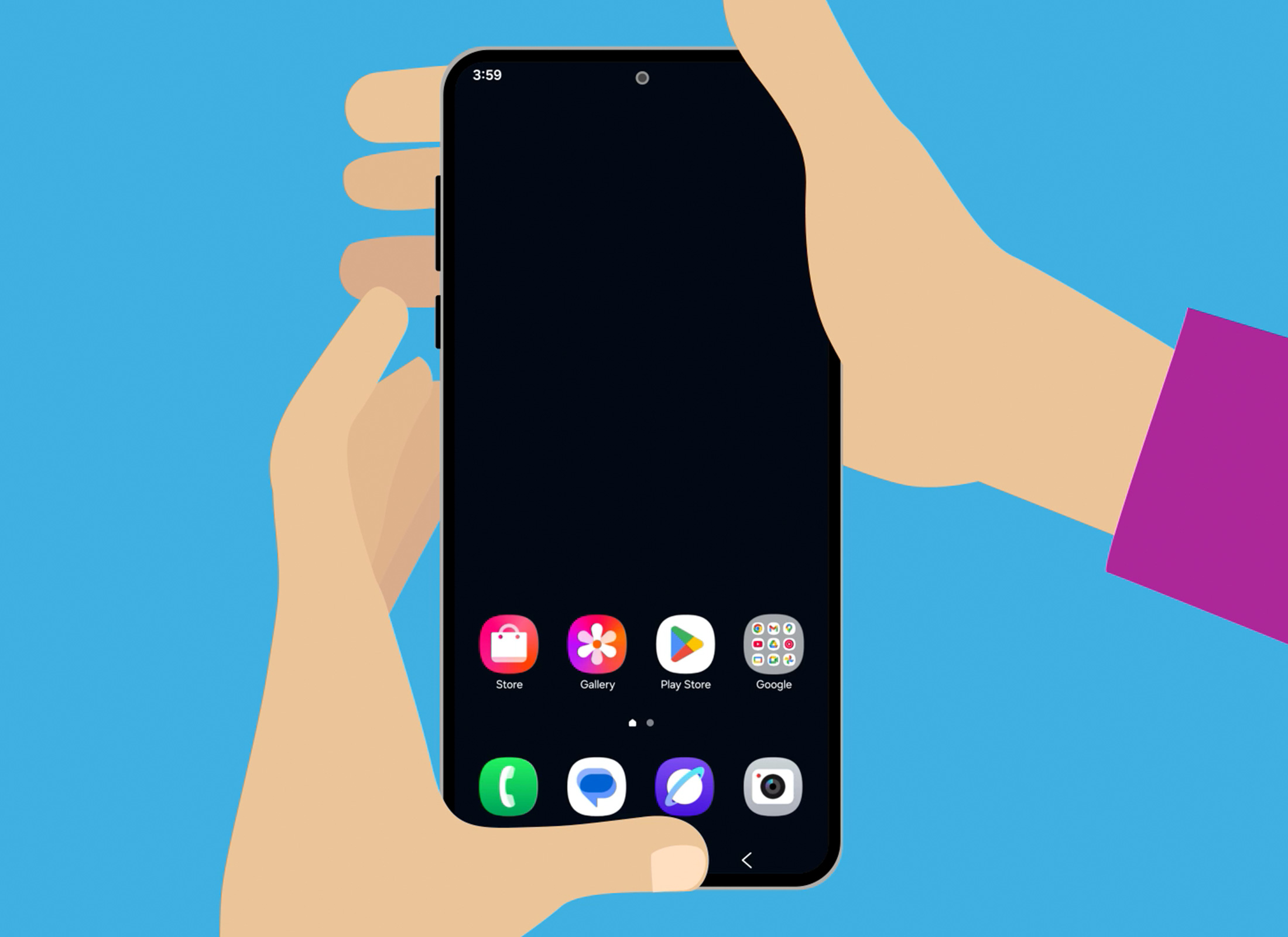
The Side key is usually found on the left or right edge of your phone, below the volume buttons. It may also be called the Power button. Depending on your phone model, the Side key can perform several functions.
Turn the screen on or off
- If your phone is on, press the Side key once briefly to turn it off and lock the screen.
- If your phone is off or asleep, press the Side key once briefly to wake it and display the Lock screen.
Shut down or restart your phone
- Press and hold the Side key, or the Side key and the Volume Down button together to open the Power menu.
- Tap Restart to reboot your phone.
- Tap Power off twice to turn it off completely.
- To turn your phone back on, press and hold the Side key for a few seconds.
- The start-up screen will appear, followed by the Lock screen.
Take a screenshot
You can use the Side key to capture a screenshot, which is an image of what you see on your phone screen.
- Press and hold the Side key and the Volume Down button together for about one second.
- The screen will flash and, if sound is on, you’ll hear a camera shutter sound.
- The screenshot will automatically save to the phone’s Gallery app.
Open the camera app
On many Android models, you can double-press the Side key to quickly open the camera, even when your phone is locked.
Activate Gemini
Gemini is your phone’s digital assistant and can help you send messages, set timers and search the web just by speaking into the phone.
If you have set up Gemini, you can press and hold the Side key to activate it.