Closing unused websites on an iPhone
This short guide is a reference tool to help refresh your knowledge or practise what you have learned in the Closing unused websites on an iPhone online video course. It explains how to find open websites in your browser and close the ones you’re no longer using.
About website tabs
When you browse the internet on your iPhone, each website opens in its own tab, similar to pages in a book.
Closing websites you’re not using can help your browser run smoothly and your phone perform at its best.
Finding and closing websites
- From the Home screen, tap the Safari app icon to open your phone’s web browser. Safari is installed on all iPhones and looks like a blue compass.
- Find the Tabs icon. It looks like two overlapping squares.
- Depending on your iPhone model, the icon may appear at the bottom right of the screen, or inside the More menu, which looks like three vertical dots.
- Tap either the Tabs icon, or the More menu followed by All Tabs.
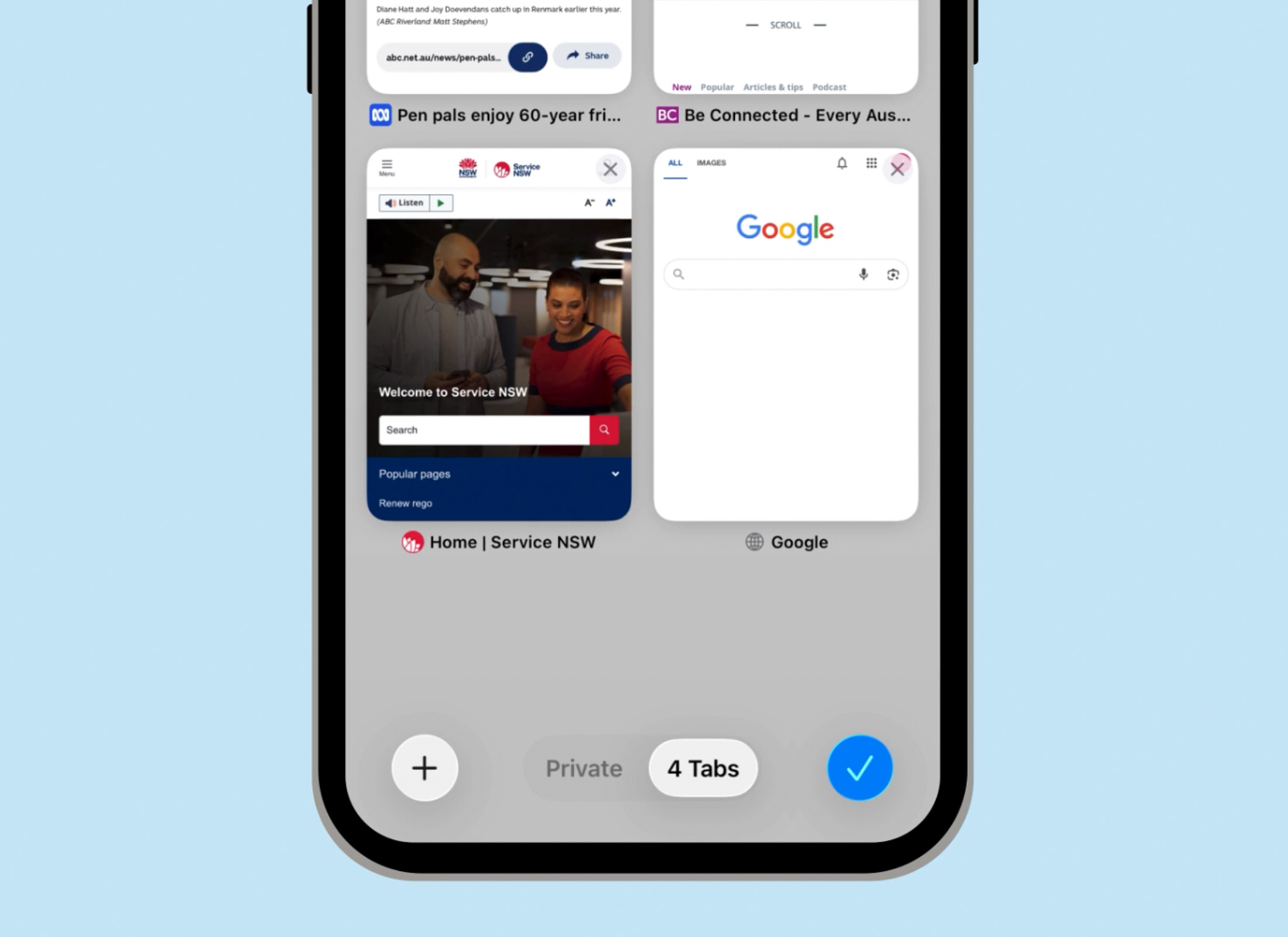
- A grid of thumbnails will appear. Each thumbnail represents an open website on your phone.
- At the bottom right is a blue tick icon, the word Tabs and a number for how many websites are currently open.
- To close one website, tap the X in the corner of the thumbnail to close it.
- To close all open websites at once, touch and hold the blue tick icon until a menu appears.
- Tap Close All Tabs, then tap Close All Tabs again to confirm.
- The Safari home page will display.