Using portrait and landscape modes on an iPhone
This short guide is a reference tool to help refresh your knowledge or practise what you have learned in the Using portrait and landscape modes on an iPhone online video course.
About screen orientation
Your iPhone screen can display information in two different ways depending on how you hold the device. Changing the screen orientation helps you view content more comfortably depending on what you are doing.
Portrait mode. The screen is upright and taller than it is wide. This mode is useful for browsing the internet, reading and using many everyday apps.
Landscape mode. The screen is sideways and wider than it is tall. This is useful for watching videos, playing some games or typing when more width is helpful.
Most iPhones automatically switch between portrait and landscape when you rotate the device.
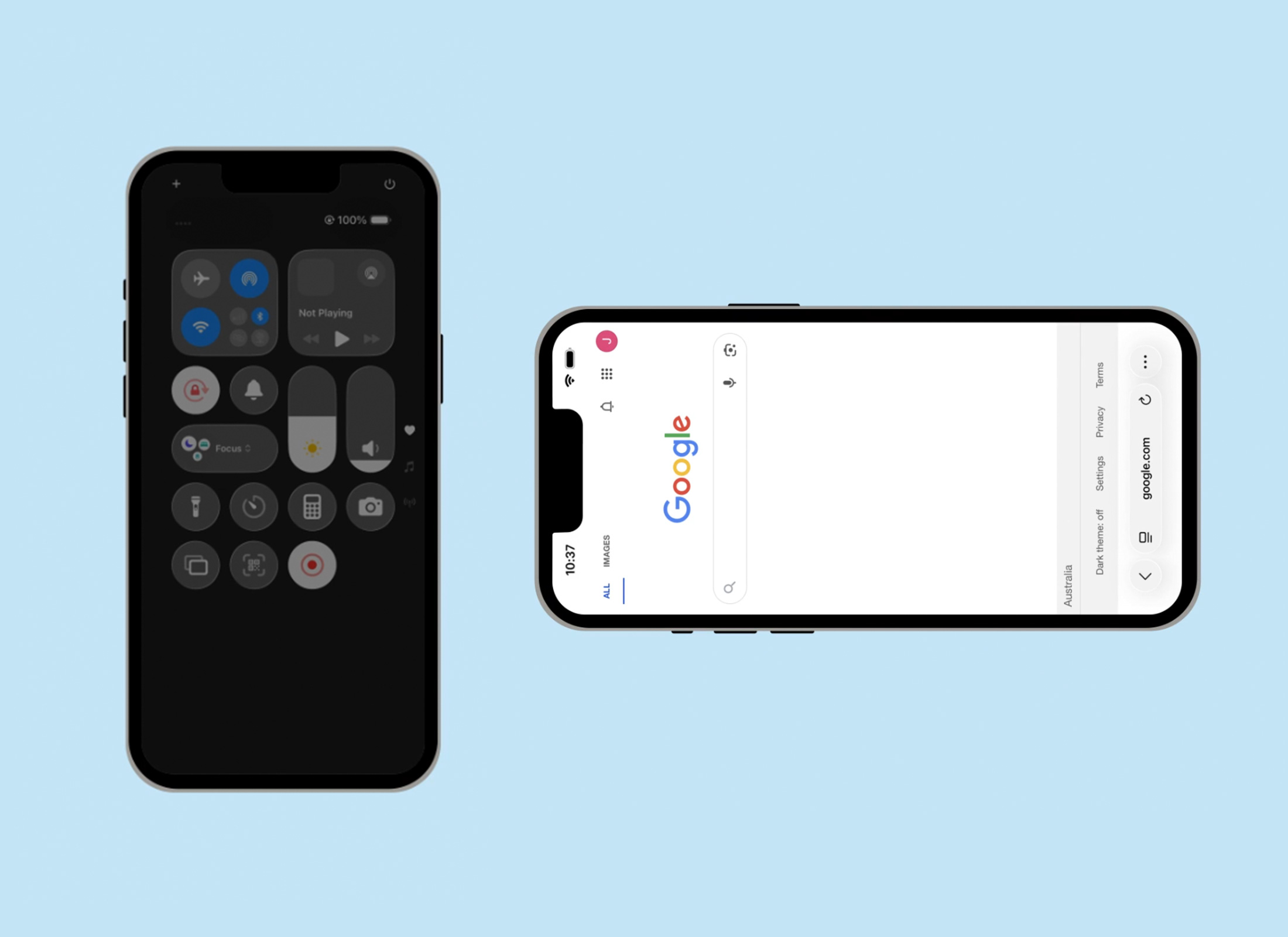
Locking or unlocking screen rotation
You can choose whether your screen changes orientation automatically or stays fixed using Control Centre. You can open Control Centre at any time, even from the Lock screen.
- If your iPhone has a physical Home button, open Control Centre by swiping up from the bottom edge of the screen.
- On other iPhone models, open Control Centre by swiping down from the top right of the screen.
- Start the swipe from the bezel, which is the area around the edge of the screen.
- Inside Control Centre, look for the Rotation Lock icon. It looks like a padlock with a curved arrow.
- When the icon is grey, your phone will switch between portrait and landscape automatically when you turn the device.
- To lock the screen in portrait mode, tap the icon once so it becomes red.
- To unlock screen rotation, tap the Rotation Lock icon again so it becomes grey.