Checking your data limit and usage on an Android phone
This short guide is a reference tool to help refresh your knowledge or practise what you have learned in the Checking your data limit and usage on an Android phone online video course, including how to:
- check how much mobile data you've used
- set your billing cycle and a data warning alert
- see which apps are using the most data.
Finding your data usage
Keeping an eye on your data can help you avoid unexpected charges on your bill and ensure you don't run out before your plan renews. To check your mobile data use:
- Start from the Apps screen and tap the Settings icon.
- From the Settings menu, tap Connections.
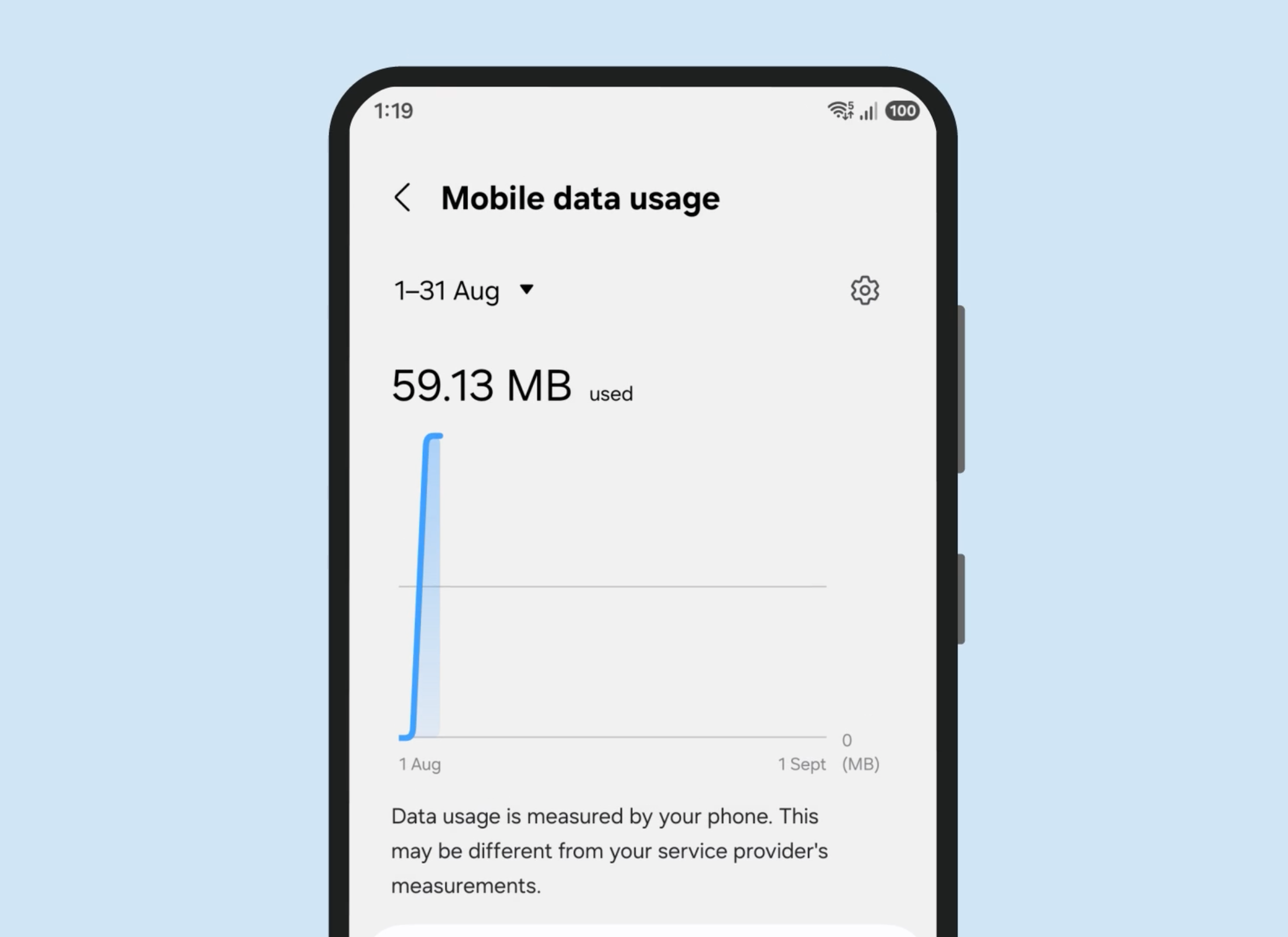
- Tap Data usage. At the top of the screen, a bar graph shows how much data you've used over the current period.
- Tap Mobile data usage to see a breakdown of which apps have used the most data.
Setting up a data warning
Some Android phones can send you an alert when you're approaching your data limit, so you're never caught out. To set up this, start by setting your billing cycle. This is the date your mobile plan and data limit reset each month.
- On the Mobile data usage screen, tap the Settings icon in the top right.
- Tap Start billing cycle on.
- Scroll to select the date your plan renews. If you're not sure of the date, check your provider's app or your last bill.
- Tap Set.
- Turn on the switch next to Set data warning.
- Tap Data warning and enter an amount a little below your monthly limit.
- Tap Set.
Your phone will now send a notification when you're getting close to your limit.
There's also an option called Set data limit. Turning this on automatically cuts off your mobile data once you reach the amount you choose, which can be useful if you're worried about going over.