How to use Multifactor Authentication (MFA)
This short guide is a reference tool to help refresh your knowledge or practise what you have learned in the How to use Multifactor Authentication online video course, including how to:
- understand what MFA is and why it matters
- recognise the different types of proof MFA can use
- sign in to an account using MFA.
What is MFA?
Multifactor Authentication, or MFA, is when you use two or more different types of proof to verify your identity when signing in to accounts online, such as your banking, email or government accounts.
MFA helps provide extra protection against anyone trying to get hold of your personal or financial details. It can also be called 2FA, or two-factor authentication.
Types of proof
MFA can combine a few different types of proof, depending on the account.
- Your username and a password or PIN. This is usually the first step when signing in.
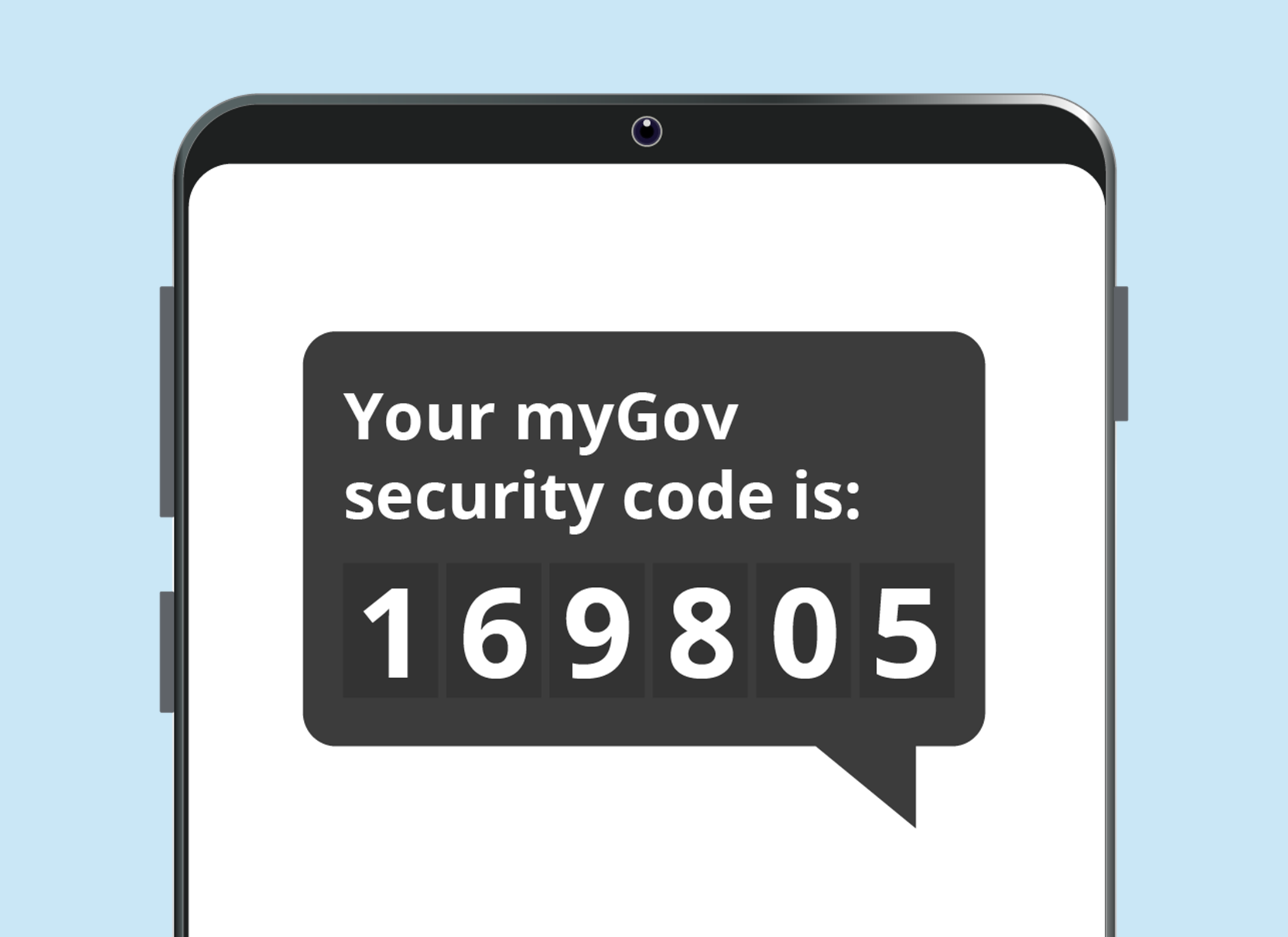
- A one-time security code, sent as a text message or email to the number or address you provided when you set up MFA. This is usually the second step.
- A fingerprint or facial scan. Some accounts ask for this as a third type of proof.
Signing in with MFA
Signing in to a myGov account requires MFA. This example demonstrates how to sign in to myGov on a computer and receive the security code on a phone.
Using separate devices adds security, because even if someone knows your sign-in details, they'll still need your phone to get into your account.
- From the myGov Home page, click Sign in at the top right.
- Enter your username or email address in the first box on the Sign in screen, and your password in the second.
- Once you're sure both are correct, click the Sign in button.
- A one-time code will be sent to your mobile number, and you'll be asked to enter it on the myGov website.
- Open the Messages app on your phone to find the code. It should be at the top of your messages.
- Enter the 6-digit code into the box on your computer and click Next.
Once you're signed in, myGov has checked two types of proof – your email address and password, plus the code.