Listening to a web page with Chrome on your Android phone
This short guide is a reference tool to help refresh your knowledge or practise what you have learned in the Listening to a web page with Chrome on your Android phone online video course, including how to:
- have Chrome read a web page out loud to you
- pause, skip and change the speed of the reading
- use Reading mode to make a web page easier to read
- change the font, text size and background colour.
How Chrome can help
The Chrome web browser can read a web page out loud to you and change how a page looks so it's easier to read. This is handy for pages with lots of information and instructions, such as news sites, government services and financial services.
Chrome comes installed on Android phones and tablets. You can also download it to iPhones and iPads from the App Store.
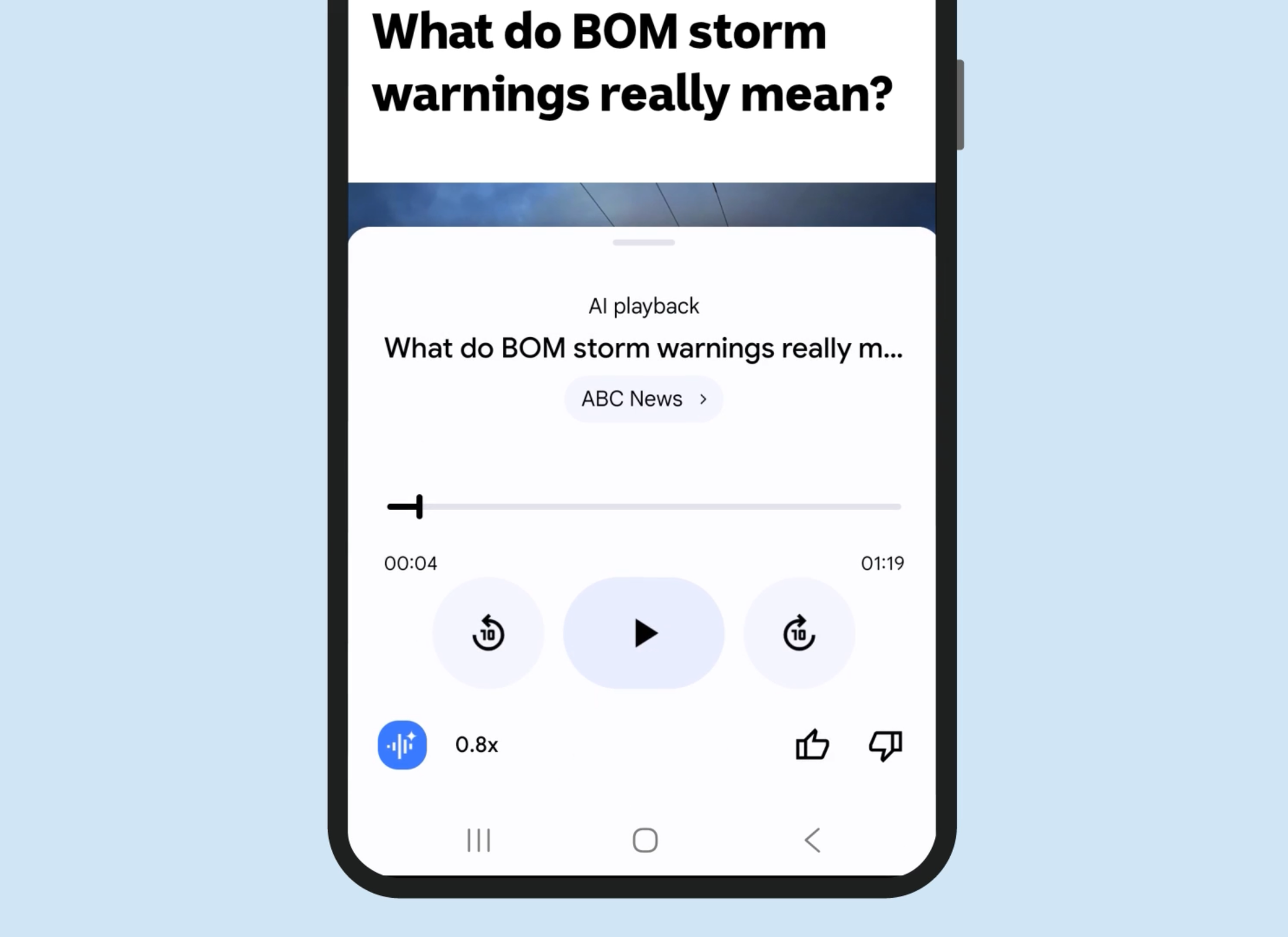
Having a page read out loud
- Open the web page you'd like to listen to in Chrome.
- Tap the three dots at the top right of the screen to open the Chrome menu.
- Scroll to find Listen to this page, and tap it.
Chrome starts reading the page out loud, and a small player panel appears at the bottom of the screen.
Using the player controls
- To stop the reading, tap the Pause icon.
- To see more options, tap the small player panel.
- To start reading again, tap the Play icon.
- To jump forward or back a few seconds, tap the skip buttons.
- To choose a different voice, tap the blue icon at the bottom left.
- To make the reading faster or slower, tap the number at the bottom left and choose your preferred speed.
- To close the large panel of player options, swipe down from the top of the panel.
- To switch off Listen to this page, tap the small cross on the right of the small player panel.
Making a page easier to read
- Tap the three dots at the top right of the screen.
- Scroll to Show reading mode, and tap it.
Chrome tidies the page so that just the story is left. You can scroll down to keep reading.
To change how the text looks, you can tap the Reading mode panel at the bottom of the screen. You can:
- choose a different font
- move the slider to the right to make the text larger, or to the left to make it smaller
- tap a colour option below the slider to change the background.
To close Reading mode and go back to the standard version of the page, tap the Back button at the bottom right of your phone.