Changing your iPhone screen to suit day or night
This short guide is a reference tool to help refresh your knowledge or practise what you have learned in the Changing your iPhone screen to suit day or night online video course, including how to:
- understand the benefits of Light Mode and Dark Mode
- switch between modes in your Settings app
- set Dark Mode to turn on and off by itself
- use Control Centre to change modes in a hurry.
Light Mode and Dark Mode
Your iPhone can show its screen in two different ways:
- Light Mode shows dark text on a white background. It can be easier to read in the daytime and outdoors.
- Dark Mode shows light text on a black background. It's less bright, so it can feel easier on your eyes at night or in a dark room. On some iPhones, it can also help your battery last a bit longer.
Only change how your screen looks in your iPhone's Settings app. If a link or message offers you an app to change your screen, don't tap it.
Changing modes in Settings
- From the Home Screen, tap the Settings app. It looks like a cogwheel.
- Scroll down the list of options and tap Display & Brightness. It has a blue icon with a small white sun.
- At the top of the screen, under Appearance, you'll see two pictures of a phone. The left one is called Light and the right one is called Dark.
- Tap Dark to change the background to black. Your iPhone's other menus and many of your apps will also have a black background.
- Tap Light to change the background back to white.
Letting your iPhone change modes by itself
You can set your iPhone to switch between modes on a schedule.
- On the Display & Brightness screen, tap the switch next to Automatic, below the two phone pictures. The switch turns green.
- Tap Options, just below the switch.
- Sunset to Sunrise is selected. This means Dark Mode will turn on in the evening and off in the morning, based on your location settings.
- If you'd like to pick your own times, tap Custom Schedule instead.
Using Control Centre
There's also a quick way to change modes from any screen.
- Swipe down from the top right corner of the screen to open Control Centre.
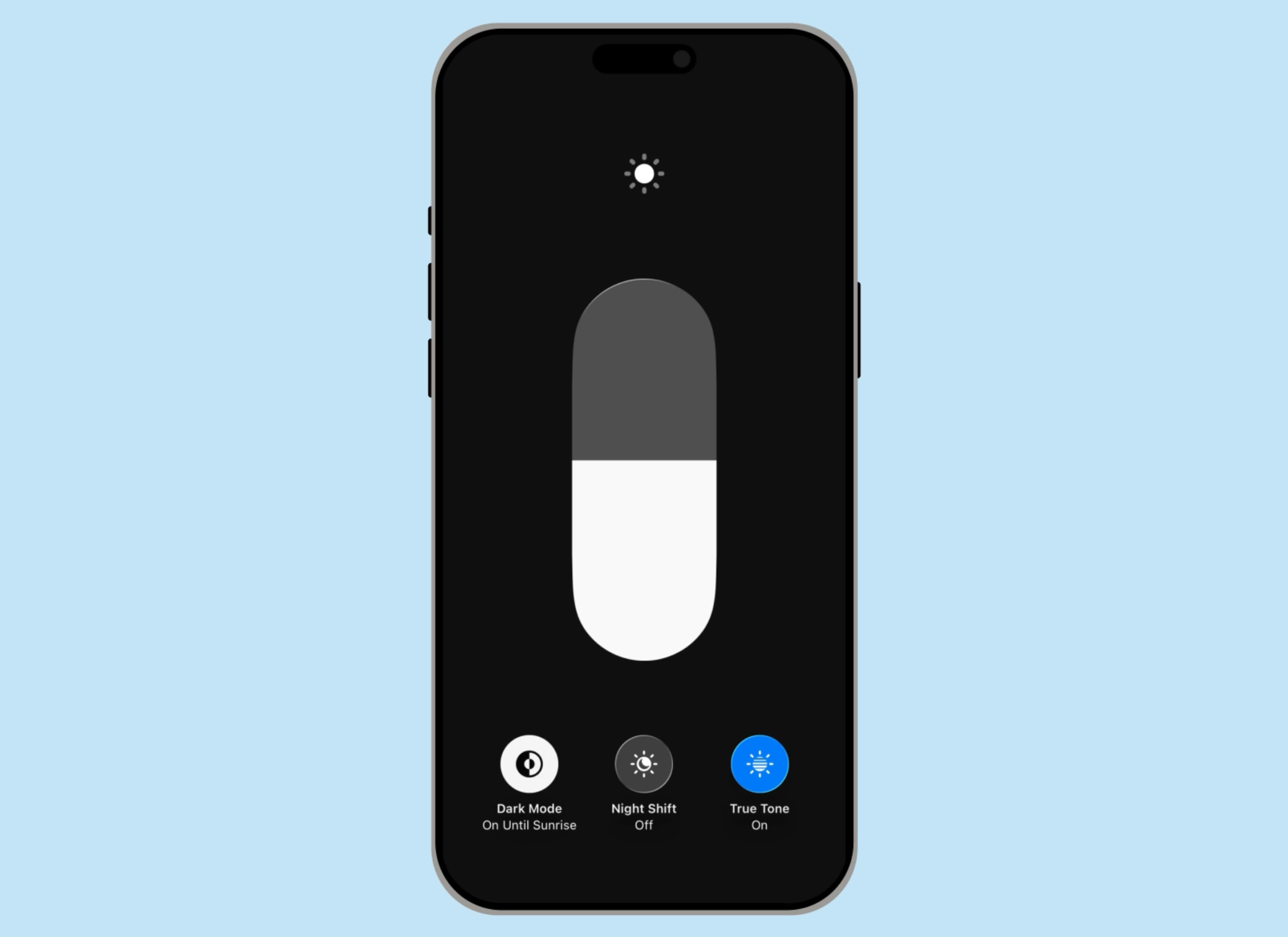
- Tap and hold the Brightness slider. It has a small sun icon.
- On the panel that opens, tap the Dark Mode button at the bottom left to turn Dark Mode on.
- To turn Dark Mode off, tap the Dark Mode button again.