Changing your Android phone screen to suit day or night
This short guide is a reference tool to help refresh your knowledge or practise what you have learned in the Changing your Android phone screen to suit day or night online video course, including how to:
- understand the difference between Light mode and Dark mode
- switch between modes in your Settings app
- set Dark mode to turn on and off by itself
- use Quick settings to change modes in a hurry.
Light mode and Dark mode
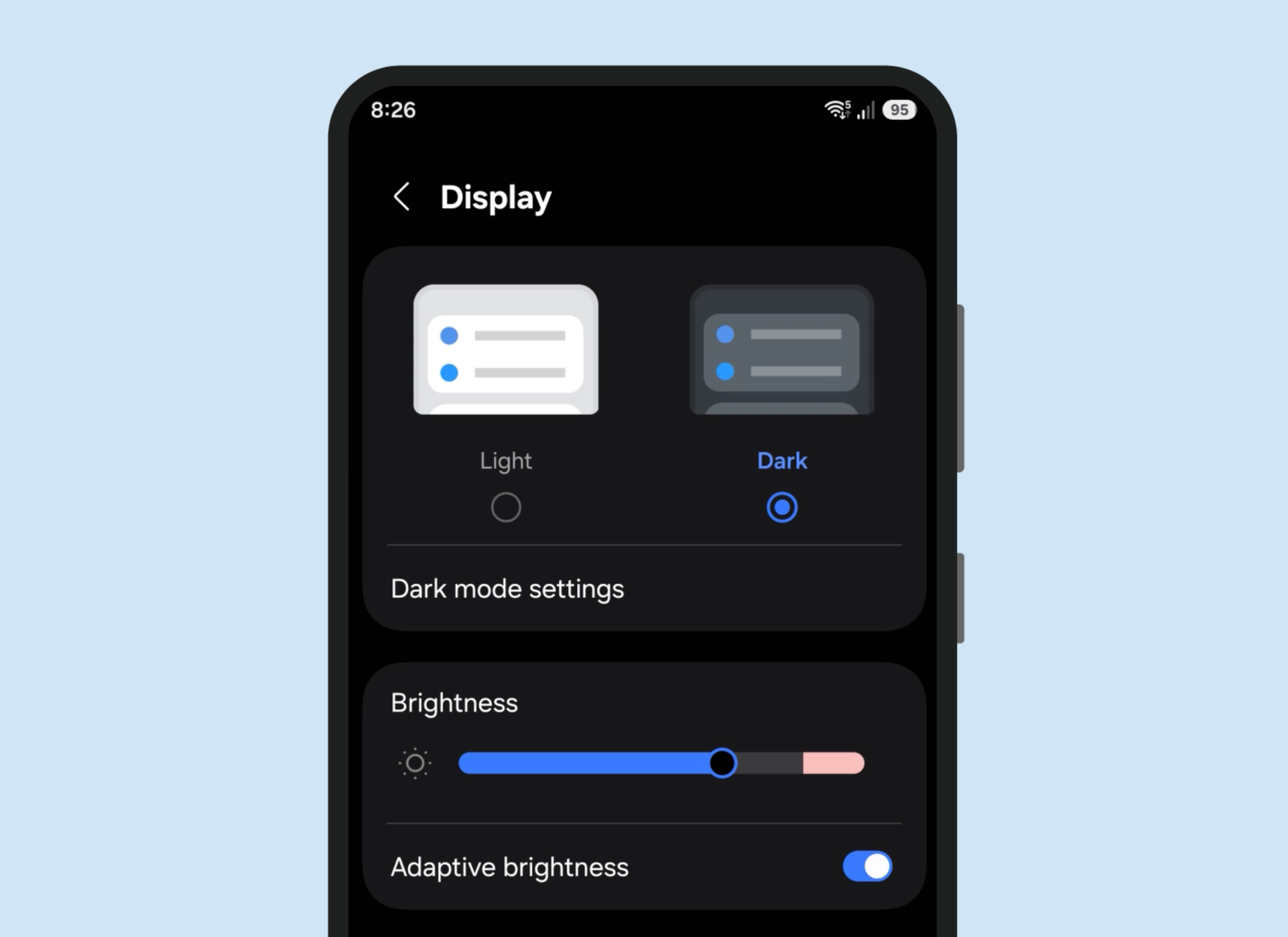
Your Android phone can show its screen in two different ways:
- Light mode shows dark text on a white background. It can be easier to read in the daytime and outdoors.
- Dark mode shows light text on a black background. It's less bright, so it can feel easier on your eyes at night or in a dark room. On some phones, it can also help your battery last a bit longer.
Only change how your screen looks in your phone's Settings app. If a link or message offers you an app to change your screen, don't tap it.
Changing modes in Settings
- From the Apps screen, tap the Settings app. It looks like a cogwheel.
- Scroll down the list of options and tap Display.
- At the top of the screen, you'll see two pictures of a phone. The white one is called Light and the black one is called Dark.
- Tap Dark to change the background to black. Your phone’s other menus and many of your apps will also have a black background.
- Tap Light to change the background to white.
Letting your phone change modes by itself
You can set your phone to switch between modes on a schedule.
- On the Display screen, tap Dark mode settings, below the two phone pictures.
- Tap the switch next to Turn on as scheduled to see the options.
- Sunset to sunrise is selected. This means Dark mode will turn on in the evening and off in the morning, based on your location settings.
- If you'd like to pick your own times, tap Custom schedule instead.
Using Quick settings
There's also a quick way to change modes from any screen.
- Swipe down from the top right of the screen to open the Quick settings panel.
- Look for the Dark mode button, next to a slider control. It has a small moon icon.
- Tap the button to turn Dark mode on.
- To turn Dark mode off, open Quick settings again and tap the moon icon.