Using your Android phone to hear more clearly
This short guide is a reference tool to help refresh your knowledge or practise what you have learned in the Using your Android phone to hear more clearly online video course, including how to:
- get set up with the Sound Amplifier app
- give the app the permissions it needs
- adjust the sliders to hear voices more clearly
- turn Sound Amplifier off.
What Sound Amplifier does
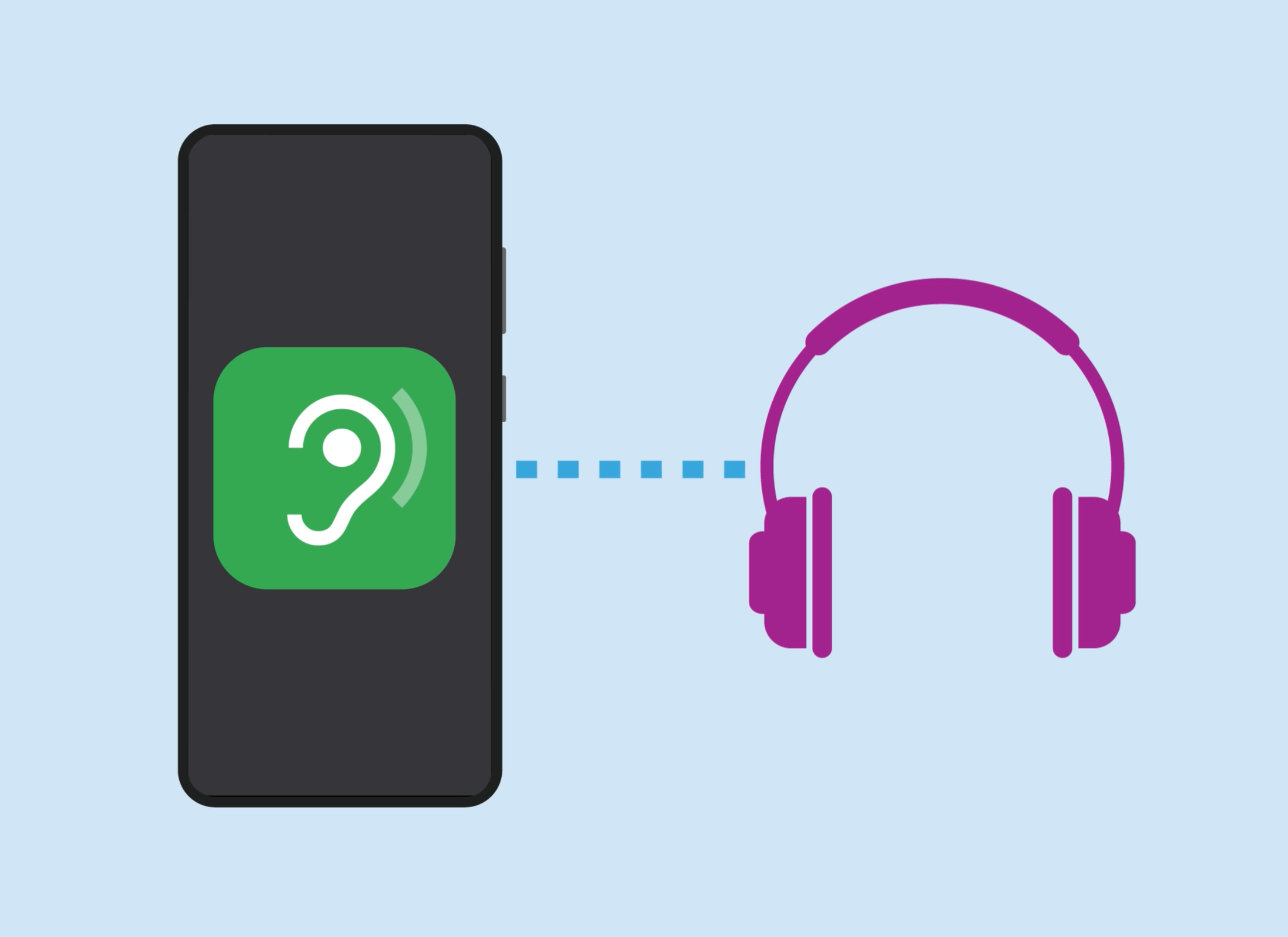
Sound Amplifier is an app that sends nearby sound to your headphones or hearing aid. It can help you hear conversations more clearly in noisy places, such as cafes and family gatherings.
The Sound Amplifier app is installed on some Android phone models, and can be downloaded from the Google Play Store.
Sound Amplifier doesn't work through your phone's speaker, so you’ll need Bluetooth or wired headphones, or a compatible hearing aid.
For the best results, place your phone in front of the person you'd like to hear.
Opening Sound Amplifier
- From the Apps screen, find the green Sound Amplifier icon and tap it.
- If your headphones or hearing aid aren't connected yet, the app will ask you to connect them. If the message doesn't close by itself once you're connected, tap Done.
- A pop up asks permission for the app to record audio. Tap While using the app.
- Another pop up asks permission to show notifications. The app needs this to work, so tap Allow.
Finding your way around the app
When the app opens, you'll see an audio wave at the top of the screen. The wave changes as your phone picks up different sound levels. Below it are some slider controls.
The Phone mic button is selected automatically. This means the app uses your phone's microphone to pick up sound around you. You can also choose to make music and video sound on your phone louder, or switch Sound Amplifier off.
Adjusting the sound
- Drag the Noise reduction slider to the right to soften background noise, like music or traffic.
- Drag the Boost quiet sounds slider to the right to make quiet voices louder and easier to hear.
- Move the Boost high or low frequencies slider to the left to make low sounds, like deep voices, louder. Move it to the right to boost high sounds, such as birds.
Turning Sound Amplifier off
To turn Sound Amplifier off, you can:
- tap the Off button below the audio wave and go back to the main menu, or
- tap the Back arrow at the bottom right of the screen to close the app.