Sending a voice message on an Android phone
This short guide is a reference tool to help refresh your knowledge or practise what you have learned in the Sending a voice message on an Android phone online video course, including how to:
- record a voice message in the Messages app
- listen back and re-record if needed
- send your voice message to a contact.
Getting started
Open the Messages app from your Home screen. It's a white icon with a blue speech bubble. If you can't find it, swipe up to open the Apps screen and look for it there.
Find the person you’d like to message by tapping the speech bubble icon in the bottom right corner and searching for them in your Contacts list, or by tapping a previous message from the contact in the Messages app.
Recording your message
Once the conversation view opens, look at the text box at the bottom of the screen.
- Tap the audio wave icon or microphone on the right of the text box.
- A message box will appear. Tap it, or tap the microphone icon below it, to start recording.
- Speak your message clearly, then tap the Stop icon when you've finished.
Reviewing and sending your message
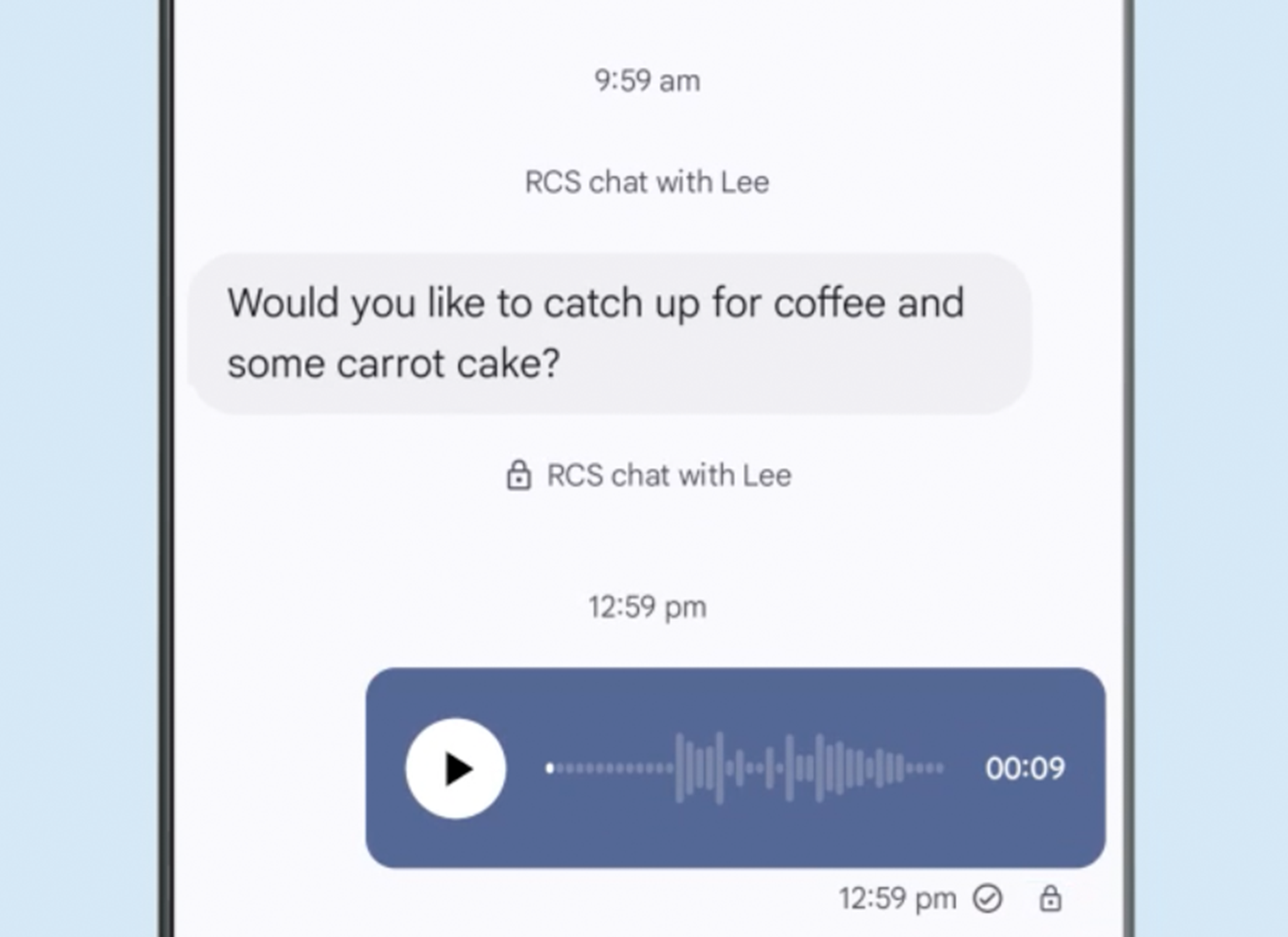
Tap the Play icon in the message box to listen back to your recording. If you're not happy with it, tap Restart to record it again.
When you're ready to send, tap Attach and your voice message will be saved in the conversation view.
Before you send, always double-check the name at the top of the screen to make sure you're messaging the right person.
Once you're happy, tap the Send arrow at the bottom right to send your message.