Checking your data limit and usage on an iPhone
This short guide is a reference tool to help refresh your knowledge or practise what you have learned in the Checking your data limit and usage on an iPhone online video course, including how to:
- check how much mobile data you've used
- understand what the Current Period figure means
- reset the counter to match your billing cycle
- see which apps are using the most data.
Finding your data usage
Keeping an eye on your data can help you avoid unexpected charges on your bill and ensure you don't run out before your plan renews. To check your mobile data use:
- Start from the Home screen and tap the Settings icon.
- From the Settings menu, tap Mobile.
- Scroll down to the Mobile Data section and look for Current Period. The figure shown is the total amount of data your phone has used since the counter was last reset.
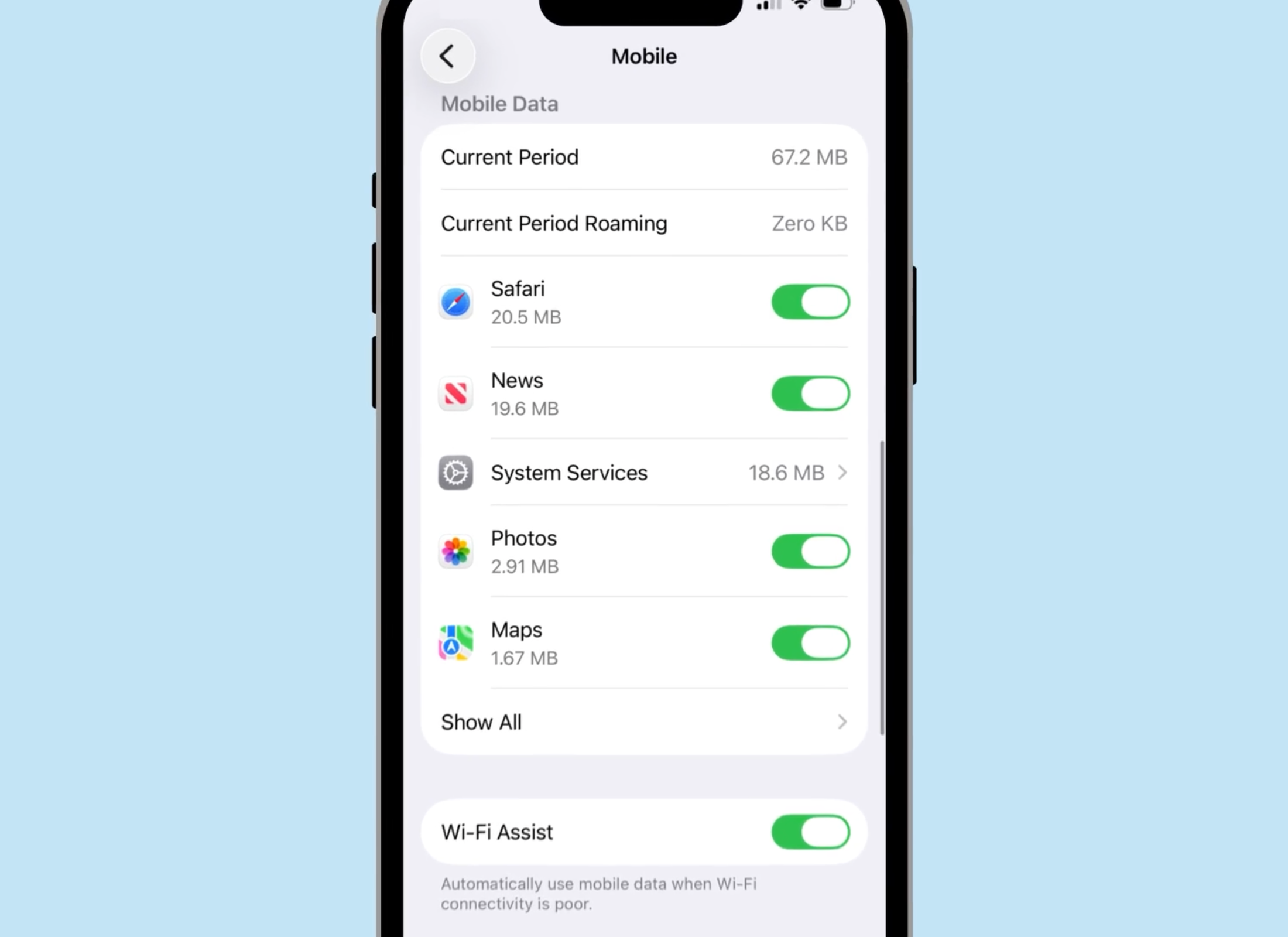
The data figure on your phone is an estimate and may not exactly match what your provider records. For the most accurate reading, check your provider's app.
Matching the counter to your billing cycle
You can set the counter to the day your plan renews, so that the data usage figure on your phone reflects what you’ve used in the current billing period. To set this up:
- Scroll to the bottom of the Mobile screen.
- Tap Reset Statistics.
- Follow the prompts to set the date the counter renews.
Checking usage by app
Scroll back up to the Mobile Data section to see a breakdown of which apps have used the most data. Tap Show All at the bottom of the list to see every app on your phone, not just the top few.